Friday, March 14, 2014

Painting and Drawing, Folk Art-inspired Zentangle Landscapes


  1. First research "Folk Art" Use the links below
  1. What is a zentangle?
  2. Research Zentangle patterns
  3. Sketch 12 designs. Use care, be neat and precise.
  4. Start on your landscape design. Follow Ms. Fowler's demonstration.

Monday, March 10, 2014

Painting and Drawing: Artist Research


  1. Research: Use this link to research your chosen artist. Art 21. You can also Google search.
  2. Design: Use slid.es. Log in using your Google Account
  3. Your presentation must include: 1. title slide, 2. where is the artist from? where were they educated? 3. what is something their art is about? 4. what materials do they use? 5. examples of their art. There must be an image on every slide.
  4. Copy the "embed" code and email to Ms. Fowler (fowlerj@colheights.k12.mn.us)

Tuesday, March 4, 2014

7th Variety Show Flyers


  1. Choose a main font and download from dafont.com
  2. Install font on your computer
  3. Open the flyer template. Go to Fowler Classroom > Variety Show Flyer > and open the Template Variety Show Flyer (should automatically open in Photoshop)
  4. You can download and use any COPYRIGHT FREE images in your design
  5. You can create patterns or designs
  6.  Use 2 or 3 fonts (no more) and 2 or 3 main colors. Repeat elements- don’t put a bunch of random stuff. Too much looks childish. Make something EYE-CATCHING. Think about contrast, scale and pattern. Use alignment.
  7. When you are finished, Save As “Yourlastname Variety” to Fowler Classroom > HAND IN WORK > Variety Show Flyer folder
  8. Make it eye-catching and fun!

Wednesday, February 19, 2014

Painting and Drawing: "Expressions" lettering design


“Expressions” poster
You will be designing posters for this year’s district art show. The show is at SIlverwood park, and has a nature theme. One (or more) chosen designs will be professionally printed and put up all over town! You will learn about typography and lettering design to design your poster.

Draw the word "Expressions" using different lettering styles

  1. Look at different fonts. Go to fontsquirrel.com, dafont.com or urbanfonts.com. Write down the names of two that you like on your worksheet. 
  2. Look for images of hand-drawn typography using google image search and hand drawn posters
  3. You can print one page of letter styles to look at while you are designing if you want too.
  4. Look at the printed fonts from the examples Ms. Fowler gives you
  5. Do a practice drawing
  6. Lightly sketch on your final paper (fill the page)
  7. First we will paint with watercolor, then add colored pencil- make it bright and eye-catching! Blend colors!


8th Digital Art: Yearbook Project


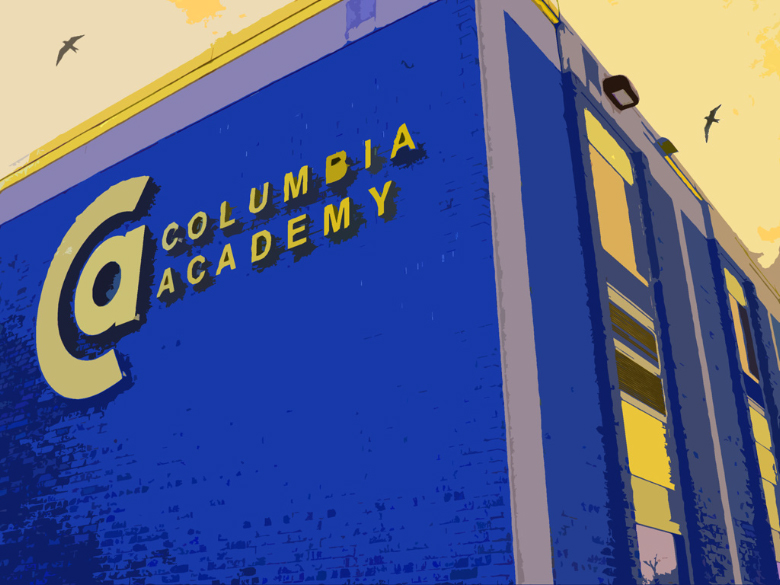
Your class has been hired to create artwork for the title page of this year’s yearbook. Use Photoshop to turn an ordinary picture of the school building into a work of art! All of the instructions can also be found on caarts.blogspot.com

Directions:
  1. Chose and photo and copy to your desktop. Go to Fowler Classroom > Materials > School Photos.
  2. Drag the photo onto the PS icon to open it in Photoshop
  3. Make the photo more interesting. Change it from a dull, wintery photo into something more fun!
  4. Try images adjustments. Go to Image (at the top) > Adjustments. Try the different menus. “Vibrance”, “Hue/Saturation” and “Color Balance” will all change your picture dramatically.
  5. Now try Filters. Go to Filter (at the top) > Filter Gallery. Go through the folders to try different filters. You will notice whatever colors you have chosen will be used in the filters, so you may want to change your colors.
  6. If you know how to use Photoshop, you may want to try cutting and pasting in parts of other pictures. You can use the “copyright free” photos links on caarts to look for other photos.
  7. If you need some inspiration, look at the past student examples HERE
  8. When you are finished, save a final copy into your folder, and the HAND IN WORK folder. Name it YourLastNameYearbook.psd
You have only this class to finish. One chosen project will receive a free yearbook!

8th Digital Art: Surrealist Dreamscapes


2. Get Real with Salvador Dali Video. Part 1, and Part 2
4. Sketch your Dreamscape
5. Start designing. Collect your photos from morguefile.com or fotopedia.com
6. Read through the requirements on your worksheet.


Todd Schorr, American Surreal

Friday, February 14, 2014

8th grade: Artful Writing

We will look closely at an artwork by Gustav Klimt and complete a writing activity. By asking yourself a series of questions, you can look more cloesly and deeply at a work. Listen to this example of the process from the Weisman Art Museum in Minneapolis.

Now try looking at this artwork: Gustav Klimt, "The Kiss"
And answering these questions:

Tuesday, February 11, 2014

7th Digital Art: Dream Destination Prezi


  1. Vocabulary
  2. Go to Google Maps and look through this list of major cities of the world. Pick a city from a foreign country.
  3. Log into prezi.com to get started. Use your SCHOOL GOOGLE EMAIL: Your name + apps.isd13.org, and your password should be your school ID number.
  4. Add a title, photo and introduction paragraph
  5. Use Google image search and save a map of your country, showing your city
  6. Look up the weather for your chosen city. Try weatherspark.com. Google your city and "average weather" or try World Climate
  7. Research arts and culture questions
  8. Look up major attractions in your city
  9. Go to KAYAK for flight and hotel information
  10. Student example

Wednesday, February 5, 2014

Painting and Drawing: Collage Portraits

Mark Bradford
1. Watch presentation and take notes
Rosemary Karuga

2. Explore these websites:

3. Take a picture of yourself. Save it to the Fowler>Classroom>Paint/Draw folder. Ms. FOwler will print it. Trace onto white paper.


Maurice D.

7th Digital Art: Cartoon yourself!


This project will introduce you to some basic Photoshop tools and using mouse control. We will use Photoshop to trace a digital photo and show an expressive and emotive cartoon face.

This cartoon project relates to the animation projects we will try later in the semester. Watch a video on the history of animation:
The Animated History of Animation

Create an Animated GIF
some good GIFs: One, Two, Three, Four, Five


We will practice writing an artist statement to go along with your project.


8th Media Arts: Klimt-inspired self portrait

Research: Writing Activity: "The Kiss" by Gustav Klimt
Go to schoology.

1. Read about Gustav Klimt and answer the questions on your worksheet.

3. Go to Art Lex and search "Art Nouveau." Read and look through examples. Then use the dictionary to complete the Vocabulary section.
Art Nouveau video

4. Start your design. Watch the demonstrations and follow the directions on your worksheet. Video: How to use patterns in Photoshop
Klimt's portrait "Adele Bloch-Bauer I" sold for $135 million, the highest price ever reported on a painting

Thursday, January 30, 2014

Wednesday, January 29, 2014

Painting and Drawing, Intro Exercise


Welcome to painting and drawing.

Art is not just about having a great piece of work at the end, it is about the process and what you learn and discover along the way.

What are 8 ways to look at Art?

For our first exercise, see what you can discover...


Monday, January 20, 2014

Digital Art Lab Procedures


  • Read through worksheet
  • Log on to assigned computer
  • Complete the worksheet. You will need this link and the flashcards:


  • Writing Practice: How to be a Critical Viewer
    Go to this link. Choose one cigarette advertisement and answer the questions on the screen. When you are finished, sign up on the board so Ms. Fowler can check it.

    Try it:
    Try these Media Arts activities: Media Studio

    Wednesday, January 8, 2014

    Jan. 14: 7th Media Arts

    Please try one of the activities below. If you need to create an account, log in with your school Google account-or Heights Apps account (your username + @heights.apps.isd13.org). You will have to save and share your project with me. You can post the link into a comment below, or email me the link: fowlerj@colheights.k12.mn.us.

    Choose One:
    1. Create a movie using ZimmerTwins
    2. Make an animation using Scratch
    3. Make a movie using GoAnimate 
    4. Make a Flipbook Animation
    5. Make an animation using DomoAnimate
    6. Make a movie using Dvolver
    7. Make a comic using Comic Creator
    8. Make a video using Wideo
    9. Create some Gifs using Gifpal
    10. Create an animation using PowToon