Monday, June 2, 2014

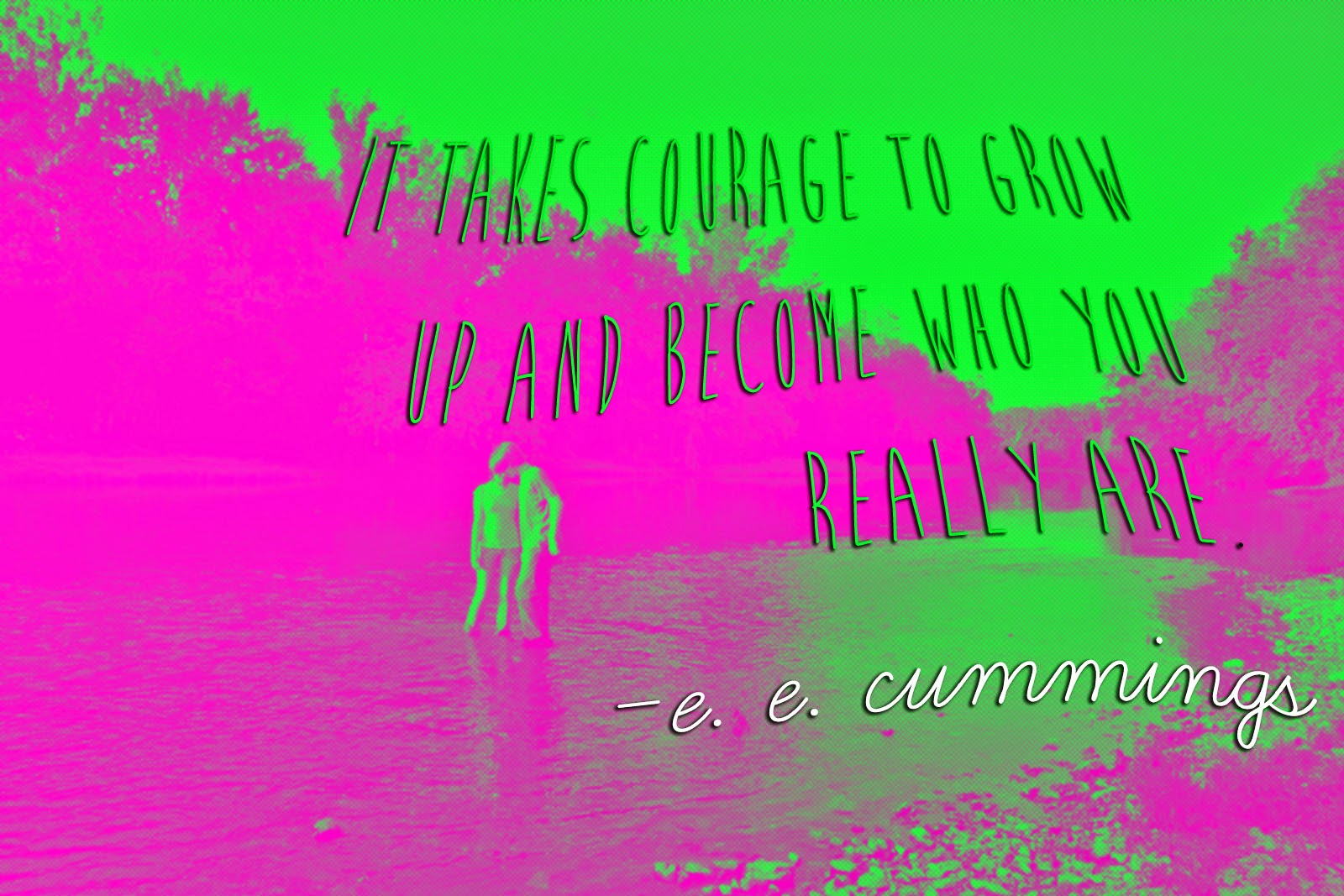
7th Inspirational Quote designs

Steps
  1. Pick an inspirational quote. Find one that is meaningful to you, not too long, and you must include the author.
    1. Ms. Fowler's Pintrest board
    2. Brainy Quote
    3. Inspirational quotes
  2. Find a photograph for the background 
    1. We will try lots of different kinds of shots- First look up each shot here
    2. go to morguefile.com to download a photo to use.
  3. Design in Photoshop 
    1. Use effects, color adjustments and filters
    2. Add your text. You may want to download a custom font. You can find some free fonts here. Or any of the other "Free font" links on the right-hand side.
  4. When we are finished we will save as "YourLastName Quote.psd" to the HAND IN WORK folder, and save it in your own folder.
  5. Write an artist statement
  6. Display and critique

*If you have extra time, go to

Tuesday, May 20, 2014

Painting and Drawing: Photobooth

For your next project, you will design a photobooth. You will work in a team of no more than 4.

"Head in the hole" boards (Ms. Fowler page)
or try googling "photo cutouts" or "head in hole"
more
Flicker page


Thursday, May 15, 2014

8th grade: Video Poems


For this project your will be creating a video poem using iMovie and video footage. Use this blog post to complete your research and planning packets. Ms. Fowler will show you examples.

1. Use the dictionary application to write the definitions to the words on your worksheet

2. Find a poem (or write your own original poem!).
Poetry Foundation for teens
Make sure it is one you really like.

2. Storyboard. Plan out your video on the worksheet. Write down what words will be on the screen at the same time (break the poem up into stanzas), and what kind of video may will go with it. Fill a minimum of 6 frames.

3. Shoot your video and upload to your computer. Copy files to your folder as back up. You can also use copyright free photos or your own original art work. (You could try drawing in Photoshop or Illustrator!)

4. Put it all together in iMovie. You will have to import your video and type the captions or record a voice over. Choose transition effects, video effects and titles/credits. Choose animation effects for your type. Change the fonts and colors.

5. Think about the pace of your movie. Try using a variety of shots: close-ups, far away, color, black and white. You should still make sure your images relate to each other. They should look like they belong together.

6. Try adding background sound or music. You can make your own music in GarageBand

7. When you are finished, Go to Share > Export Movie. Save it as "YourLastNameVideoPoem", and the size "Large", to the Desktop. Copy the file to your folder, and the HAND IN WORK folder.

Tuesday, May 13, 2014

7th Fashion Design

Research
Try the two activities linked from caarts.blogspot.com
  1. Symmetry Activity
  2. Organic and Geometric Shapes
  3. Patterns 
  4. Practice making some patterns
Now lets look at some examples of print and pattern designs. Go to: Print and PatternLook through all of the examples (you can also go through the archives). Pick 3 and describe them. 
Follow the directions on your worksheets to design 3 different patterns and apply them to 3 different items. Have fun!

NEXT: Create an original fashion design! Ms. Fowler will give you directions

Tuesday, May 6, 2014

Zoo Trip

Finish your packet. Minnesota Zoo website.

Minnesota Zoo Games: Matchmaker (diversify breeding), Who pooped

Try these games: San Diego Zoo

Switch Zoo: Build a habitat

Painting and Drawing: Close Up


We will study "hyper-realism", the work of artist Chuck Close, and create our own close up drawings.

1. Presentation 1:
Student examples

2. Presentation 2: Hyperrealism Examples.
4. Research.
     Go to the Guggenheim website. Pick one work of art and answer the questions on your worksheet.
     Go to ArtsConnectEd: Chuck Close. Answer the questions on your worksheet

6. Practice drawing using a grid
7. Take a close up picture (your face must fill the frame)
8. Create grid
9. Draw, shade and add detail
10. Artist statement, Critique and present
"Frank" by Chuck Close, at the Minneapolis Institute of Arts

Thursday, May 1, 2014

8th grade- Garageband


1. Complete the Research and Planning worksheet
2. Choose a found video to compose music for. It must be 1:30 minutes or longer.

Thursday, April 10, 2014

8th Digital Art: Blooming Heights Logo


Blooming Heights Logo


Blooming Heights is our district’s community garden. Students help to plant, maintain and cultivate the garden. You have been hired to create a logo for the garden. The chosen design will appear on printed materials like business cards, advertisements and mailings, it will also go on the blooming heights website and in digital promotions. 
  1. Ms. Lohman, the garden director will present. Take notes.
  2. Logo Design Presentation
  3. Garden Logos
  4. The Noun Project (for symbols)
  5. Free fonts

Wednesday, March 26, 2014

7th Media Arts: Stop Motion Animation

Research

1. Try a practice animation:
2. Watch some stop-motion examples: Stop-motion Animations

Planning

Watch How to make a stop-motion
Fill out planning portion

Draw your storyboard
Form groups of 3 or 4.
      Person 1- Director: Oversees the filming and production. Follows the storyboard.
      Person 2- Camera-person: Makes sure each shot is properly lit, in focus and steady.
      Persons 3 (and 4)- Actors: Either act in the movie or control the set/characters/objects.

Create

1. Make your set, characters, lettering, and anything else you need.
2. Create a title sequence
3. Take pictures
4. Edit your photos in iMovie

Monday, March 24, 2014

8th Digital Arts: Food Packaging Design

Packaging Video

Vocabulary
1. Use the dictionary application to look up the following words: brand, slogan, UPC, FDA, consumer.


3. Decide on your customer or consumer.


5. Package Design Examples and Inspiration
  1. Packaging of the World
  2. Inspiration Feed
  3. Great Packagin Design
  4. Lovely Package
  5. Google Image Search, Best packaging
6. Brainstorm/Plan/Sketch
7. Follow the directions on your worksheet. 8. You must include a Brand name, Description or  Slogan, Ingredients, Nutritional information, Barcode. You may include a picture of the product or illustrations.
9. Design using Adobe Illustrator. Demonstration

Videos:
Designing in Illustrator

Go Here for Ingredients

Friday, March 14, 2014

Painting and Drawing, Folk Art-inspired Zentangle Landscapes


  1. First research "Folk Art" Use the links below
  1. What is a zentangle?
  2. Research Zentangle patterns
  3. Sketch 12 designs. Use care, be neat and precise.
  4. Start on your landscape design. Follow Ms. Fowler's demonstration.

Monday, March 10, 2014

Painting and Drawing: Artist Research


  1. Research: Use this link to research your chosen artist. Art 21. You can also Google search.
  2. Design: Use slid.es. Log in using your Google Account
  3. Your presentation must include: 1. title slide, 2. where is the artist from? where were they educated? 3. what is something their art is about? 4. what materials do they use? 5. examples of their art. There must be an image on every slide.
  4. Copy the "embed" code and email to Ms. Fowler (fowlerj@colheights.k12.mn.us)

Tuesday, March 4, 2014

7th Variety Show Flyers


  1. Choose a main font and download from dafont.com
  2. Install font on your computer
  3. Open the flyer template. Go to Fowler Classroom > Variety Show Flyer > and open the Template Variety Show Flyer (should automatically open in Photoshop)
  4. You can download and use any COPYRIGHT FREE images in your design
  5. You can create patterns or designs
  6.  Use 2 or 3 fonts (no more) and 2 or 3 main colors. Repeat elements- don’t put a bunch of random stuff. Too much looks childish. Make something EYE-CATCHING. Think about contrast, scale and pattern. Use alignment.
  7. When you are finished, Save As “Yourlastname Variety” to Fowler Classroom > HAND IN WORK > Variety Show Flyer folder
  8. Make it eye-catching and fun!