Tuesday, October 30, 2012

6th Media Arts: Legendary Creatures


Introduction
We will write a story about a made-up Legendary Creature, then use Adobe Photoshop to collage together photos to illustrate our creature. Here are some examples from last year.

Directions

1. Vocabulary
Use the Dictionary application for Vocabulary words

b. Myths, Legends, Fables and Folklore (answer the questions in your packet)
c. Look at these professional examples:
Photoshop Animals 1

3. Sketch
Sketch in your packet

4. Write
Follow the directions on your worksheet, and us MSWord to write your legend.

5. Design
Go to Morguefile.com to collect your photos

*Extra time activities: go to Remix Art Studio or Pixlr-o-matic

Monday, October 29, 2012

7th Media Arts: Comic Con, Superheros

We will work on a packaging design project for our Arts and Engineering Comic Con (or Comic Convention).

1. Research
     First, let's talk about what a comic convention is like. Video. Experience Comic Con.

You will design superhero characters (like a superhero) and create a packages for candy, suckers, and stickers. We will sell these at our booths (for Columbia Academy cash, or real $).

2. Brainstorm
    Begin by brainstorming some character designs. You can use the internet for inspiration. Draw12 different characters on your paper.
Superhero
cute superhero
superhero character

3. Design
    We will do some practice in Adobe Illustrator. Follow Ms. Fowler's directions step-by-step to create a practice project. Then, use what you have learned to make TWO of your own designs on the computer.

4. Packaging design
After you hand your designs in, Ms. Fowler will print your characters on stickers to add to candy packages. We will sell these at our Comic Con.

Turn one of your finished designs into a book cover, a T-shirt, or both. A book cover must include a title and an author. You can find the T-shirt template in Fowler-Classroom>Materials.

Monday, October 22, 2012

PSN Care Package Designs


8th Media Arts: Project Safety Nets

8th Graders will work with Miss Ann to develop a fundraising campaign for her foundation "Project Safety Nets." You will design 4 different pieces: a flyer, a care package, a T-shirt, and a thank you note. 

Research Miss Ann will talk with you about the foundation, and her needs as the client. Write down notes from her presentation (What does Project Safety Nets do? What is important to include in your designs?)


Plan

Use the internet to research donation campaign designs, and the Project Safety Nets website. How will you encourage people to donate? Sketch your designs.

Design each on the computer. Use the templates Ms. Fowler has provided for each. They will include all of the text and information you need, and will be set up as the right size. We will work on one design per class. These should all have the same look and feel –use similar colors, fonts, and design elements. A good guideline for your designs: No more than 2 or 3 fonts, 2 or 3 colors and include at least 2 or 3 images or design elements.

  1. Flyer
  2. Care Package
  3. T-shirt
  4. Thank you note

Monday, October 1, 2012

6th Media Arts: Cartoon characters and digital comic strips


For this project you will design cartoon characters, then choose one to make into a digital comic strip.


2. Brainstorm characters and cartoons. Draw a different design in each box of your brainstorming worksheet.

3. Try these online games
     Domo Animate

4. Illustrator Tools practice

5. Design your frames


6. Create your movie


Videos:


Monday, September 24, 2012

7th Photo Scavenger Hunt

Steps:

Photography Research. Complete the photography worksheets using these two links:


  1. Camera Contract-read and sign
  2. Camera Settings
  3. Macro Photos
  4. Practice uploading photos
  5. Photo Scavenger Hunt
  6. Create iMovie of photos
    • Upload photos to computer
    • Watch example movie
    • Import photos to iMovie
    • Edit down to best 10-15 photos
    • Add titles, captions and credits


    If you have extra time, go to: Pixlr

    Friday, September 21, 2012

    8th Media Arts: Inspirational Quote Designs


    Steps

    1. Pick an inspirational quote. Find one that is meaningful to you, not too long, and you must include the author.
      1. Ms. Fowler's Pintrest board
      2. Brainy Quote
      3. Inspirational quotes
    2. Take a photograph for the background 
      1. We will try lots of different kinds of shots- First look up each shot here
      2. Ms. Fowler will demonstrate some
      3. Shoot pictures with a partner, going off your checklist. You will each choose one of your own photos to use as the background to your quote.
    3. Design in Photoshop 
      1. Use effects, color adjustments and filters
      2. Add your text. You may want to download a custom font. You can find some free fonts here. Or any of the other "Free font" links on the right-hand side.
    4. When we are finished we will save as "YourLastName Quote.psd" to the HAND IN WORK folder, and save it in your own folder.
    5. Write an artist statement
    6. Display and critique
    *If you have extra time, go to
    Pixlr-o-matic
    PhotoOp


    Monday, September 17, 2012

    6th Media Arts: Typographic Self Portraits


    Typographic" means made of type or letters.
    This picture is all letters. Can you figure out
    which ones?
    • Presentations- What are fonts? 
    • Watch last year's projects
    • Movie "Typolution"
    • Vocabulary words
    • Demonstration- creating and starting your project
    • Work time
    If you have extra time, go to "Flash Face" or "Make an Avatar" from the Art games and Activities links

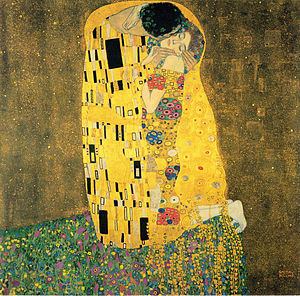
    8th Media Arts: Klimt Inspired Self-Portrait


    "The Kiss" by Gustav Klimt, 1907
    One of the most reproduced paintings
    1. Watch a slide show of past student work.

    2. Read about Gustav Klimt and answer the questions on your worksheet.

    3. Go to Art Lex and search "Art Nouveau." Read and look through examples. Then use the dictionary to complete the Vocabulary section.

    4. Start your design. Watch the demonstrations and follow the directions on your worksheet.
    Klimt's portrait "Adele Bloch-Bauer I" sold for $135 million, the highest price ever reported on a painting

    Tuesday, September 11, 2012

    Media Arts Lab Procedures


  • Read through worksheet
  • Log on to assigned computer
  • Complete the worksheet. You will need this link and the flashcards:


  • Writing Practice: How to be a Critical Viewer

    Go to this link. Choose one cigarette advertisement and answer the questions on the screen. When you are finished, sign up on the board so Ms. Fowler can come and print it. Grab it from the black and white printer, sign your name, and put in the HAND IN WORK basket.

    Try it:

    Try these Media Arts activities: Media Studio

    Friday, September 7, 2012

    Introduction Videos

    One Minute Movie: The History of Media
    Extra time activities: Media Studio
    Elements of Media Arts: Discuss and look at "LMG" by Matt S.


    Wednesday, May 23, 2012

    Painting and Drawing, Nature Pastels


    First: Flower oil pastels

    Second: Outside drawing from observation

    We will be using oil pastels to draw from nature.

    Supplies: Drawing board, paper, oil pastels, paper towel

    Look for: an interesting composition. Maybe focus on something close up.

    Study the light and shadows, the textures, and the color. What colors might you need to blend? How can you change your pastel marks to show the texture?


    Fill the page, edge to edge.

    Wednesday, May 16, 2012

    Painting and Drawing

    Famous Paintings Photo Booth
    (examples):


    Directions:
    1. Work in groups of 4. Choose a painting
    2. Research your painting and answer the questions on your worksheet
    3. Project and trace your painting
    4. Paint
    5. Cut out the face holes
    6. Decide how the booth will be set up for photos

    Tuesday, May 15, 2012

    7th Photo Scavenger Hunt

    1. Camera Contract
    2. Camera Settings
    3. Macro Photos
    4. Practice uploading photos

    5. Photo Scavenger Hunt
    6. Create iMovie of photos

      • Upload photos to computer
      • Watch example movie
      • Import photos to iMovie
      • Edit down to best 10-15 photos
      • Add titles, captions and credits

      Monday, May 14, 2012

      Elements of Media Arts

      Space, Motion, Sequence, Image, Sound, Time

      Breaking down a video into elements

      Tuesday, May 1, 2012

      8th Media Arts, Video Poems


      For this project your will be creating a video poem using iMovie and video footage. Use this blog post to complete your research and planning packets. Ms. Fowler will show you examples.

      1. Use the dictionary application to write the definitions to the words on your worksheet

      2. Find a poem (or write your own original poem!).
      Poetry Foundation for teens
      Make sure it is one you really like.

      2. Storyboard. Plan out your video on the worksheet. Write down what words will be on the screen at the same time (break the poem up into stanzas), and what kind of video may will go with it. Fill a minimum of 6 frames.

      3. Shoot your video and upload to your computer. Copy files to your folder as back up. You can also use copyright free photos or your own original art work. (You could try drawing in Photoshop or Illustrator!)

      4. Put it all together in iMovie. You will have to import your video and type the captions or record a voice over. Choose transition effects, video effects and titles/credits. Choose animation effects for your type. Change the fonts and colors.

      5. Think about the pace of your movie. Try using a variety of shots: close-ups, far away, color, black and white. You should still make sure your images relate to each other. They should look like they belong together.

      6. Try adding background sound or music. You can make your own music in GarageBand

      7. When you are finished, Go to Share > Export Movie. Save it as "YourLastNameVideoPoem", and the size "Large", to the Desktop. Copy the file to your folder, and the HAND IN WORK folder.